How to Attach a File to an Email: Easy Step-by-Step Guide
How to attach a file to an email
Sending an email is easy, but attaching a document, picture or other file can be confusing if you have never done it before. You may need to send your CV to an employer, submit an assignment, share a PDF document or send pictures to someone.
The process is simple once you know where to find the attachment option.
Whether you use Gmail, Outlook, an Android phone or an iPhone, this guide explains how to attach a file to an email, send multiple attachments and fix common problems.
- What Does It Mean to Attach a File to an Email?
- How to Attach a File to an Email Using Gmail on a Computer
- What to Look Out for When Attaching a File to an Email in Outlook
- How to Attach a File to an Email Using an Android Phone
- How to Attach a File to an Email Using an iPhone
- How to Attach a PDF Document to an Email
- How to Attach Multiple Files to an Email
- How to Attach Pictures to an Email
- How to Attach a File From Google Drive
- How to Send Large Files Through Email
- Common Problems When Attaching a File to an Email
- Things to Check Before Sending an Email Attachment
- Frequently Asked Questions
- Conclusion
What Does It Mean to Attach a File to an Email?
Attaching a file to an email means adding a document, picture, video or another file to a message before sending it.
Instead of typing all the information into the email itself, you can send the file alongside your message.
For example, if an employer asks you to email your CV, you can write a short message introducing yourself and attach your CV as a PDF or Word document.
The recipient will receive your email with the attached file and can open or download it.
Common files you can attach include:
- PDF documents
- Microsoft Word documents
- Excel spreadsheets
- PowerPoint presentations
- Pictures and photographs
- Videos
- Audio files
- ZIP files
The types of files you can send depend on the email service and its attachment restrictions.
How to Attach a File to an Email Using Gmail on a Computer
If you use Gmail on a desktop computer or laptop, follow these steps.
Step 1: Open Gmail
Visit Gmail through your web browser and sign in to your account.
Make sure you are using the correct email address, especially if you have more than one Gmail account.
Step 2: Click Compose
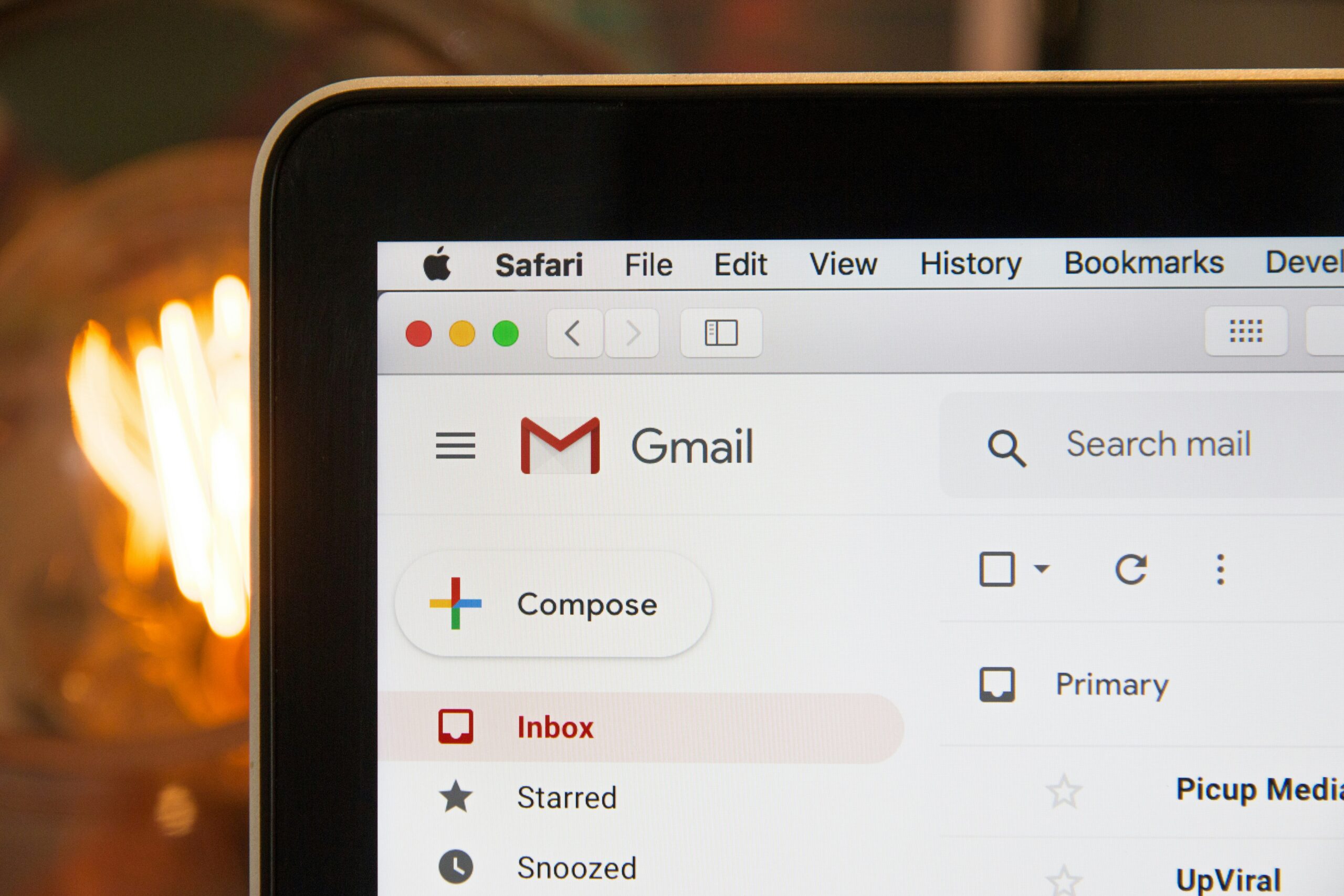
On the left side of your Gmail inbox, click the Compose button.
A new message window will appear.
Step 3: Enter the Recipient’s Email Address
In the To field, type the email address of the person you want to send the file to.
Check the address carefully to avoid sending your document to the wrong person.
Step 4: Add a Subject
Enter a short subject that explains what your email is about.
For example, if you are sending your CV for a job application, you could write:
Subject: Application for Marketing Assistant Position
Step 5: Write Your Message
Type a short message explaining why you are sending the email.
For example:
Dear Hiring Manager,
Please find attached my CV for your consideration. Thank you for taking the time to review my application.
Best regards,
Jane Smith
Step 6: Click the Attachment Icon
At the bottom of the message window, locate the paperclip icon.
This is the Attach files button.
Click it to open your computer’s file selection window.
Step 7: Select the File
Browse through your computer folders and locate the document you want to send.
For example, if your CV is saved in the Downloads folder, open Downloads and select the correct file.
Click Open to attach it.
Step 8: Confirm That the File Is Attached
After selecting the file, Gmail will upload it and display its name at the bottom of your message.
Wait for the upload to finish before sending the email.
Step 9: Click Send
Check the recipient’s address, subject, message and attachment.
If everything is correct, click Send.
Your email and attached document will be delivered to the recipient.
For additional instructions, see Google’s official guide, Send attachments with your Gmail message.
What to Look Out for When Attaching a File to an Email in Outlook
If you use Microsoft Outlook, the process is also straightforward.
Follow these steps:
Step 1: Open Outlook
Visit Outlook through your browser or open the Outlook application on your computer.
Sign in using your Microsoft account.
Step 2: Create a New Email
Click New mail to open a blank email message.
Step 3: Enter the Recipient’s Details
Type the recipient’s email address in the To field.
Step 4: Add the Subject and Message
Enter a suitable subject and write the message you want the recipient to receive.
Keep your message clear and relevant to the attached document.
Step 5: Select Attach File
Locate the Attach or Attach file option in the message window.
Depending on the Outlook version, it may appear under the Insert or Message tab.
Click the option to view the available files.
Step 6: Choose Your Document
Browse your computer and select the file you want to send.
Click Open to add it to your email.
Outlook may also allow you to select recently used files or documents stored in OneDrive.
Step 7: Check the Attachment
Confirm that the correct document appears in your message.
If you selected the wrong file, remove it and attach the correct one.
Step 8: Send the Email
Once you have checked everything, click Send.
Your recipient will receive the message with the attached document.
Microsoft provides additional instructions in its guide, Add pictures or attach files to emails in Outlook.
How to Attach a File to an Email Using an Android Phone
You do not need a computer to send an email attachment. You can also attach documents and pictures using your Android smartphone.
These steps apply to the Gmail application.
Step 1: Open the Gmail App
Find the Gmail application on your phone and open it.
Sign in if you have not already done so.
Step 2: Tap Compose
Tap the Compose button, usually displayed at the bottom-right corner of the screen.
A new email message will open.
Step 3: Enter the Recipient’s Email Address
Type the recipient’s email address in the To field.
Step 4: Write Your Subject and Message
Add a subject and write a short message explaining what you are sending.
Step 5: Tap the Attachment Icon
Look for the paperclip icon at the top of the message window.
Tap it to view the available attachment options.
Depending on your Gmail version, you may see options such as:
- Attach file
- Insert from Drive
Select Attach file if the document is saved on your phone.
Step 6: Locate Your Document
Your phone will display available files.
Browse your folders, such as Downloads or Documents, and select the file you want to send.
If you are attaching a photograph, you may need to select it from your image folders.
Step 7: Wait for the Upload
After selecting the file, Gmail will add it to your email.
Check that the correct attachment appears before continuing.
Step 8: Send Your Email
Review the message and tap the Send icon.
Your attachment will be sent with the email.
How to Attach a File to an Email Using an iPhone
If you use an iPhone, you can attach documents through Gmail or Apple’s Mail application.
Here is how to do it using the Gmail app.
- Open the Gmail application.
- Tap Compose.
- Enter the recipient’s email address.
- Add your subject and message.
- Tap the paperclip icon.
- Select the file attachment option.
- Browse your available files.
- Select the document you want to attach.
- Wait for it to upload.
- Review the email and tap Send.
If your document is stored in the Files application, browse its folders to locate it.
For example, you may find your document under Downloads, On My iPhone or iCloud Drive.
Using Apple’s Mail App
You can also attach documents through the Mail application.
- Open the Mail app.
- Start a new email.
- Enter the recipient’s address.
- Tap inside the message body.
- Tap the arrow or formatting option above the keyboard if necessary.
- Select Add Attachment.
- Choose the document from the Files application.
- Confirm that it appears in your message.
- Send the email.
The exact menu appearance can actually differ depending on your iOS version.
How to Attach a PDF Document to an Email
PDF files are commonly used when sending CVs, certificates, assignments, application forms and official documents.
If your PDF is already saved on your device, you can attach it using the same steps described earlier.
For example, to attach a PDF through Gmail on a computer:
- Open Gmail.
- Click Compose.
- Enter the recipient’s address.
- Add your subject and message.
- Click the paperclip icon.
- Open the folder containing your PDF.
- Select the PDF document.
- Click Open.
- Wait for it to upload.
- Click Send.
Before sending, check that you selected the correct PDF.
If you have several documents with similar names, open the file first to confirm its contents.
You should also give the file a clear name.
For example:
Jane_Smith_CV.pdf
This makes it easier for the recipient to identify your document.
How to Attach Multiple Files to an Email
Sometimes, one attachment is not enough.
You may need to send your CV, cover letter, certificates and other supporting documents in one email.
Most email services allow you to attach several files to a single message.
On a Computer
- Open your email account.
- Click Compose or New mail.
- Enter the recipient’s address.
- Write your subject and message.
- Click the attachment icon.
- Open the folder containing your documents.
- Select the files you want to send.
On Windows, hold down the Ctrl key while clicking each file.
On a Mac, hold down the Command key while selecting multiple files.
- Click Open.
- Wait for all the files to upload.
- Check that every attachment appears before sending.
On a Smartphone
The process may differ depending on your phone and email application.
Generally:
- Open your email application.
- Start a new message.
- Enter the recipient’s details.
- Tap the attachment icon.
- Browse your files.
- Select the documents you want to include.
- Confirm that all attachments have been added.
- Send the email.
If your application does not allow you to select several files at once, attach them individually.
How to Attach Pictures to an Email
You can send photographs and other images through email by attaching them to your message.
This is useful when sharing identification documents, screenshots, product pictures, certificates or personal photographs.
To attach a picture:
- Open your email application.
- Start a new message.
- Enter the recipient’s address.
- Write your message.
- Click or tap the attachment icon.
- Select the picture from your device.
- Wait for it to upload.
- Send the email.
Some email applications also allow you to drag a picture directly into the message window on a computer.
Attaching an Image vs Inserting an Image
These two options are different.
Attaching an image adds the picture as a separate file that the recipient can open or download.
Inserting an image places the picture directly inside the body of your email.
If you want someone to download and save the original picture, attaching it is usually the more suitable option.
How to Attach a File From Google Drive
You do not always need to download a document to your computer before sending it through Gmail.
If the file is already saved in Google Drive, you can share it directly from your email.
Follow these steps:
- Open Gmail.
- Click Compose.
- Enter the recipient’s email address.
- Write your subject and message.
- Click the Google Drive icon at the bottom of the message window.
- Locate the document you want to share.
- Select the file.
- Click Insert.
- Review the sharing permissions.
- Send the email.
When you share a Google Drive file, the recipient may receive a link rather than a traditional file attachment.
Check the access settings before sending. If the recipient does not have permission to open the document, they may be unable to view it.
Choose the appropriate access option, such as allowing the recipient to view the file.
How to Send Large Files Through Email
Sometimes, you may try attaching a document or video and discover that it is too large to send.
This happens because email providers place limits on attachment sizes.
For example, personal Gmail accounts have a total attachment sending limit of 25 MB per email. If the total attachment size exceeds this limit, Gmail automatically adds a Google Drive link instead.
Other email services have their own restrictions.
If your file is too large, consider these options:
1. Use Google Drive
Upload the document or video to Google Drive and share its link through email.
Make sure the recipient has permission to access it.
2. Use OneDrive
If you use Outlook, you can upload your document to OneDrive and share it through a link.
This is useful when sending large documents or files that are difficult to attach directly.
3. Compress the File
You can reduce the size of some files by compressing them into a ZIP folder.
This may help when sending several documents together.
However, compression does not always reduce file sizes significantly, especially for pictures and videos that are already compressed.
4. Reduce the File Size
If you are sending a PDF, you may be able to use a PDF compression tool to reduce its size.
For pictures, reducing their resolution may also help.
Always check that the file remains clear and readable after compression.
Common Problems When Attaching a File to an Email
You may occasionally experience problems when trying to attach a document.
Here are some common issues and how to resolve them.
1. The Attachment Icon Is Not Working
If you click the attachment icon and nothing happens, try refreshing your email page.
You can also close and reopen your browser or application.
If the problem continues, check your internet connection.
2. The File Is Not Uploading
A weak internet connection may interrupt the upload process.
Check that your device is connected to the internet and try attaching the file again.
If the document is large, allow enough time for the upload to finish.
3. The File Is Too Large
Your email provider may reject an attachment that exceeds its size limit.
Try compressing the document or sharing it through Google Drive or OneDrive.
4. The File Type Is Not Supported
Some email services block certain file types for security reasons.
If your attachment is rejected, check whether the file type is supported.
Do not rename a restricted file extension simply to bypass the security restriction.
Use a safe, supported format where possible.
5. You Attached the Wrong Document
If you notice that you selected the wrong file before sending the email, remove the attachment and choose the correct one.
If you have already sent the message, you may need to send another email with the correct document and explain the mistake.
6. The Recipient Cannot Open the File
The recipient may not have the application required to open your document.
For example, some files require specific software.
If possible, send documents in commonly supported formats such as PDF.
If you are sharing a cloud link, check that the recipient has permission to open it.
Things to Check Before Sending an Email Attachment
Before clicking Send, take a moment to review your message.
A few simple checks can prevent unnecessary mistakes.
- Check the recipient’s address: Make sure the email is going to the correct person.
- Check the attachment: Confirm that you selected the right document.
- Check the file name: Use a clear and professional file name.
- Check the subject: Make sure it explains what the email contains.
- Check the message: Read through it to correct spelling mistakes.
- Check the upload: Ensure the attachment has finished uploading.
- Check the file format: Make sure the recipient can open it.
- Check the sharing permissions: If you sent a cloud link, confirm that the recipient can access it.
If you are sending sensitive documents, double-check the recipient’s address before sending. An email containing personal information or official documents should not be sent to an unintended person.
Frequently Asked Questions
1. How do I attach a file to an email?
Open your email account, create a new message, enter the recipient’s address and click the paperclip attachment icon. Select the file from your device, wait for it to upload and send the email.
2. How do I attach a document to an email using my phone?
Open your email application, start a new message and tap the attachment icon. Browse your phone’s files, select the document and send the email after confirming that it has uploaded.
3. How do I attach a PDF to an email?
Click or tap the attachment icon in your email application, locate the PDF on your device and select it. Once it appears in the message, you can send the email.
4. Can I attach more than one file to an email?
Yes. Most email services allow you to attach multiple files to one message. Select the documents you want to send and confirm that they have all uploaded successfully.
5. What is the paperclip icon used for in email?
The paperclip icon represents the attachment option. It allows you to add documents, pictures and other files to an email message.
6. Why can’t I attach a file to my email?
This may happen because of a poor internet connection, an unsupported file type, a file that exceeds the provider’s size limit or a temporary application problem. Check these issues and try again.
7. Can I attach a file to an email without downloading it first?
Yes. You can share files stored in cloud services such as Google Drive or OneDrive. The recipient may receive a link instead of a traditional attachment.
8. How do I know if a file has been attached?
Most email applications display the file name beneath the message or in an attachment section. Check that it appears before sending the email.
9. Can I attach a folder to an email?
Most email services do not allow you to attach an ordinary folder directly. You can compress the folder into a ZIP file and attach that file instead.
10. How do I send a large file through email?
If the file exceeds your email provider’s attachment limit, upload it to Google Drive or OneDrive and share the link with the recipient.
Conclusion
Attaching a file to an email is simple once you know where to find the attachment option. Whether you use Gmail, Outlook, an Android phone or an iPhone, you can send documents, pictures and other files in a few steps.